
All About Video
Overview
Ekklesia 360 allows users to upload video files to the Media library, and those videos can be linked to, downloaded or played in a pop-up video player on the live site.
To support a wide audience of devices, the Ekklesia will attempt to create MP4 (H.264) versions of the video file upon uploading.
Supported video formats
Recommended
Our most highly recommended video format is as follows:
- Format: MP4
- Audio encoding: AAC
- Video encoding: H.264
Media Library
All of the following formats are supported by the Ekklesia 360 and will be recognized as video files in the media library.
- MPEG (.mpeg, .mpg, .m4v, .mp4)
- AVI (.avi)
- MOV (.mov)
- WMV (.wmv)
- FLV (.flv)
Other formats can be uploaded, but won't be supported by Ekklesia 360 media players. They will appear as "documents" and can only be offered as downloads on the site.
File Size
Any file uploaded to Ekklesia 360 needs to be under 1GB.
Supported audio sample rates
To play correctly, the audio track in your videos will need to be formatted either in MP3 or AAC and encoded at one of these supported sample rates:
- 11.025 kHz
- 22.05 kHz
- 44.1 kHz
Pop-up Media Player
A pop-up media player built with JW Player technology is available to play video files on your site. If you wish to use the pop-up media player to play videos, the files will need to be supported by both Ekklesia 360 and the player also.
Troubleshooting
If a video does not seem to play correctly on a particular device (desktop computer, tablet, mobile phone), there are two recommended steps to take:
- Verify that the video format is supported by the device.
The format is the type of video file (example: MP4).
- Verify that the video encoding is supported by the device.
The encoding is the method used to produce the video file (example: H.264).
Here are media requirements of some popular devices:
iPad
http://www.apple.com/ipad/compare/
iPhone
http://www.apple.com/iphone/compare/
Android
http://developer.android.com/guide/appendix/media-formats.html
Playing a video in the pop-up media player
The Monk pop-up media player, available for any site using Ekklesia 360, is a simple and effective HTML-5 compatible video player built with JW Player technology.
For technical specifications on the JW Player, see:
http://www.longtailvideo.com/players/jw-player/tech-specs/
The player can be used to play your videos in two ways.
Via links in media templates
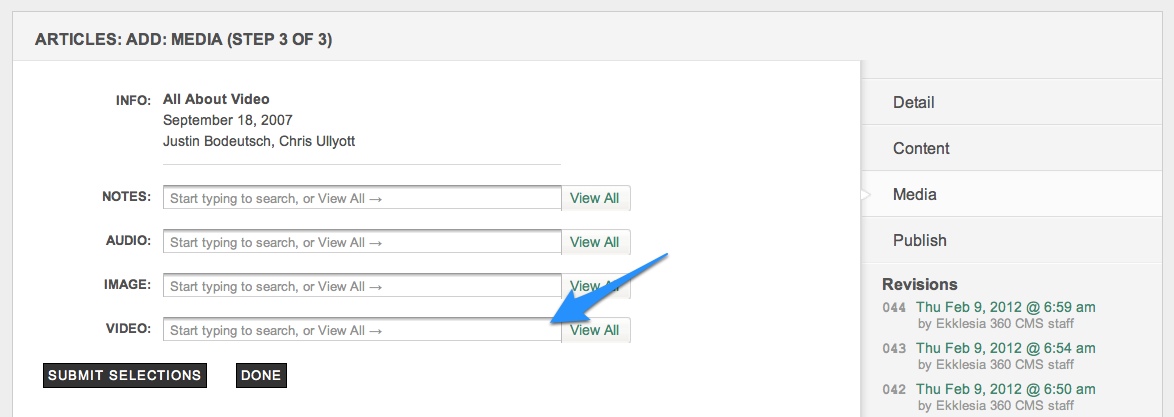
If you have a media template that already uses video links (like the "Watch" links for Article or Sermon lists), there is no other step needed to setup the pop-up media player other than specifying the video in the Media options for the individual Article or Sermon record:
Linking to files with the WYSIWYG content editor
- First, upload your file that you want to make available via the Media tab.
- In the WYSIWYG content editor (in pages, articles, sermons, etc.), write a piece of text or insert an image that will serve as the link (ie: "Click here for... ").
- Highlight this text with your cursor and click the Link (chain) icon.
- Open the site media gallery with the Magnifying glass icon on the "URL" field and select a video.
Note: you can also upload new files from this icon as well.
Embedding videos into a page
If you do not wish to play your videos in the pop-up player, there are other embeddable players available. For self-hosted video files (those uploaded to your media library), you can choose from several players available within the WYSIWYG content editor. For videos hosted on video services like Vimeo or YouTube, you can insert those videos via the HTML window.
Self-hosted video files
To embed a video file in a page using the WYSIWYG content editor, use the "Insert/edit embedded media" button.
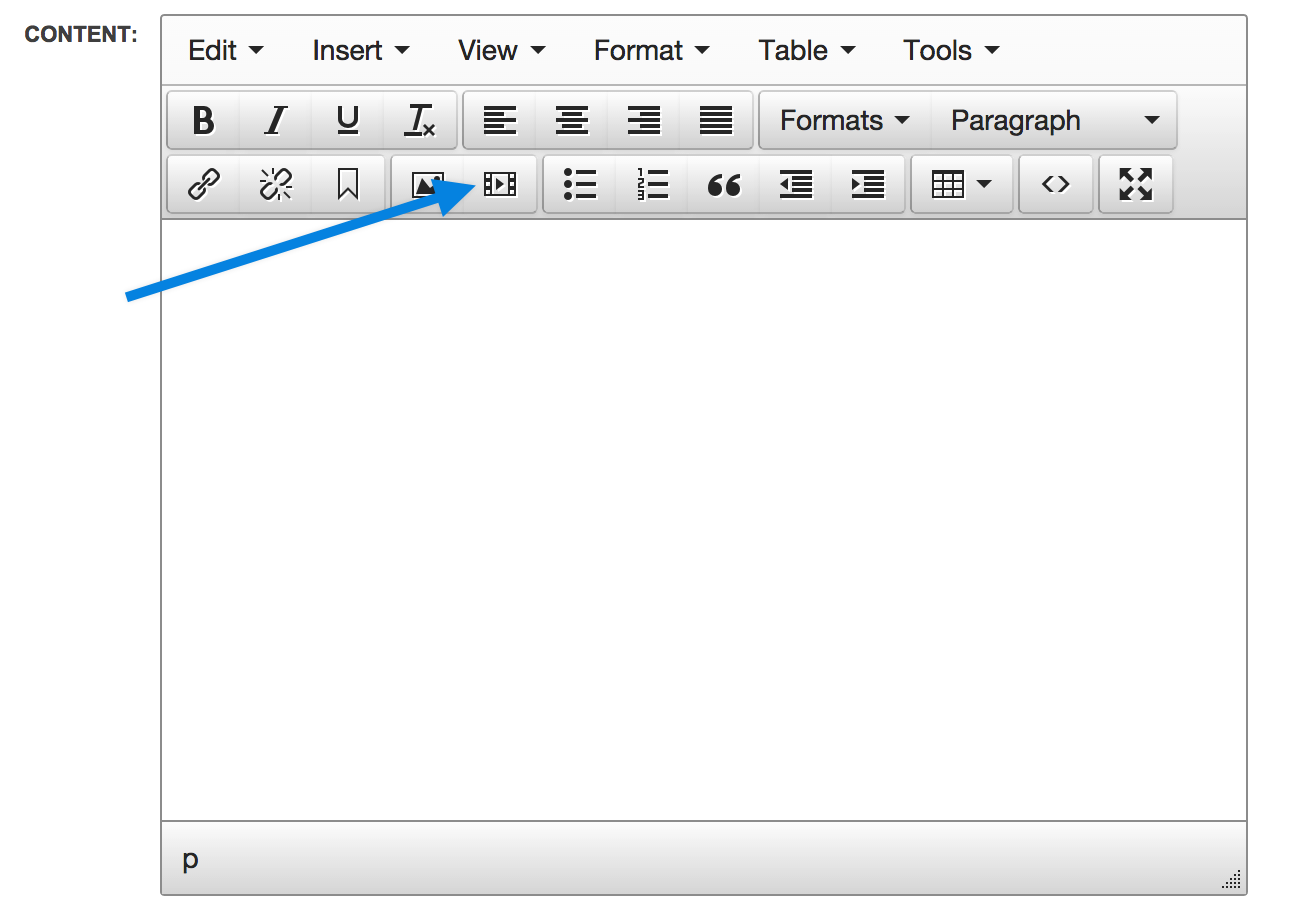
The button will open a pop-up window like so. To embed a video hosted in Ekklesia 360, select the folder icon to select your media item.
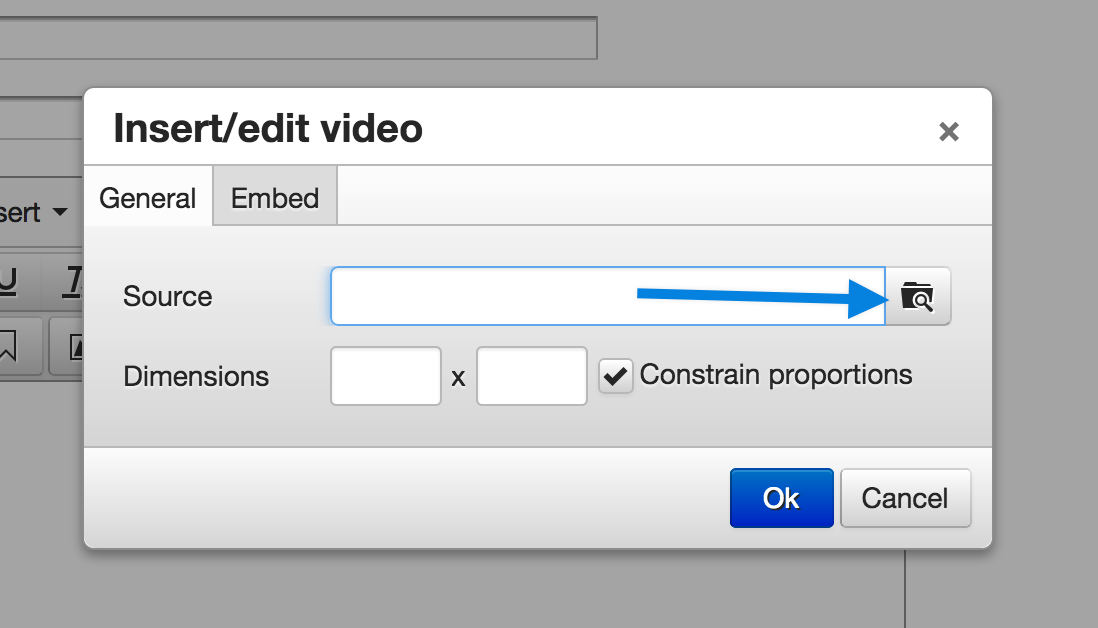
- Dimensions: Sets the size of the video player.
- Constrain proportions will maintain the aspect ratio of your video. You only need to enter one number in the dimensions and the other number will be automatically calculated to prevent your video from being stretched and distorted due to re-sizing.
Clicking Ok will embed your video onto the page.
Video embed codes
There are three ways to use video embed codes taken from a video hosting site:
- Insert directly into HTML:
To quickly insert a video embed code into a page, copy the embed code from the source. Then open the HTML view of your page, and paste in the embed code where you'd like the video to appear. - Associating via Media records:
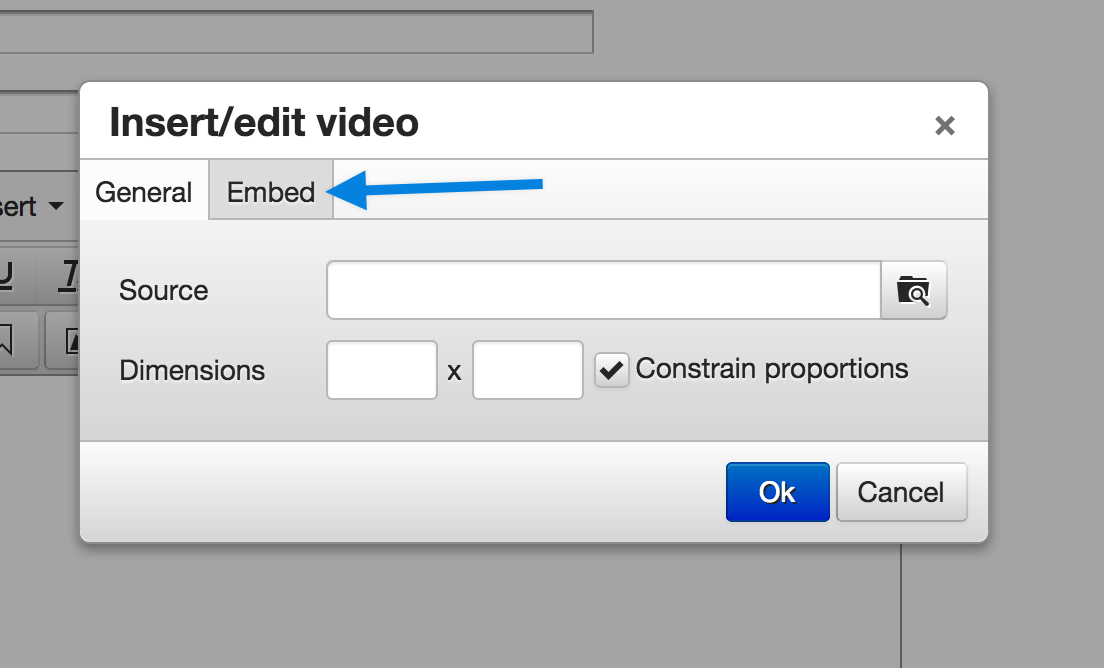
You can save media embed codes in the Media library by using the "Embed code" tab when creating a new media item. Media items that are embed codes can then be linked with content like Articles and Sermons by selecting the media item in the Media screen before publishing that content. - Using the Video Embed Icon in the WYSIWYG editor
- Select the insert edit media icon.
- Then select the embed tab.
Videos in RSS feeds
RSS feeds like podcasts, article feeds or sermon feeds will include the video file itself. If an Article has both audio and video associated with it, two entries will be created with the audio listed first. If you need to make sure your podcast uses only the video file, you can specify that in the Feeds modules.
"Self-hosted" vs. "posted" video
While it is possible to upload many video files to the media library in Ekklesia 360, consider your media storage needs over the long term. External media hosting services like Vimeo or YouTube can not only provide high storage capacities at low costs, but have several other benefits compared to hosting your own video files.
Benefits of using video services
- Multiple devices supported (may depend on level of service)
- Sharing buttons usually built into the player
- Easy sharing over social media sites, via a link to the video itself
- Automatic creation of the thumbnail image
- Enhanced SEO (individual videos should appear in search results)
Benefits of self-hosting your videos
Nevertheless, there are several benefits to self-hosting your videos. A major benefit of self-hosting is that there are more options for customization, especially if a special video template were built for your site.
- The possibility of a more customized experience (no ads, logos, or "related video" listings)
- Social media sharing is optional
- No waiting for a third-party service to process the video file
- Potential to use custom thumbnail images
- Visitors will come to your site to see the video
Recommended Resources
YouTube Embedded Players and Player Parameters
https://developers.google.com/youtube/player_parameters
Vimeo Player Documentation
https://developer.vimeo.com/player/embedding